



Performance Point: Code blocks are not allowed in this file
Nach der Konfiguration von Performance Point Service Application und der Erstellung einer Business Intelligence Center Site Collection im SharePoint 2010 erscheint die folgende Fehlermeldung:
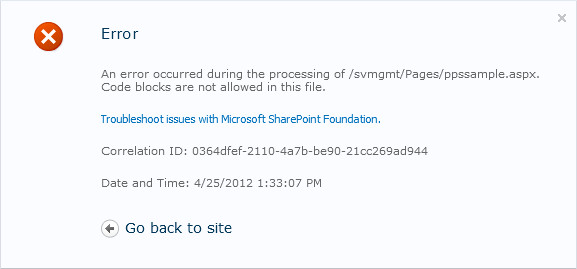
An error occurred during the processing of //Pages/ppssample.aspx. Code blocks are not allowed in this file.
Öffnen Sie das web.config File in welcher sich das Business Intelligence Center befindet, suchen Sie nach dem Element <PageParserPaths> und fügen Sie folgendes unterhalb ein:
<PageParserPath VirtualPath="/PerformancePoint/Pages/ppssample.aspx" CompilationMode="Always" AllowServerSideScript="true" />
Das müsste dann ungefähr so aussehen:
<PageParserPaths>
<PageParserPath VirtualPath="/PerformancePoint/Pages/ppssample.aspx" CompilationMode="Always" AllowServerSideScript="true" />
</PageParserPaths>
Führen Sie anschliessend einen IIS Reset aus (Command Line: iisreset /noforce)
Business Intelligence Part 5: Configuring PerformancePoint Services
Dieser Artikel steht nur in englisch zur Verfügung.
Part 1: Installing SQL Reporting Services
Part 2: Configuring Reporting Services
Part 3: Installing PowerPivot for SharePoint
Part 4: Configuring PowerPivot for SharePoint
Part 5: Configuring PerformancePoint Services
In Central Administration > Application Management > Manage Service Applications create a new PerformancePoint Service Application.
In Central Administration navigate to Systems Settings > Servers > Manage services on server and make sure that the PerformancePoint Service is started.
In Central Administration > Application Management > Manage Service Applications > Secure Store Service Application click on Generate a new Key. Create a new key for the PerformancePoint Service. Navigate to PerformancePoint Service Application > PerformancePoint Service Application Settings and enter the username and password for querying the data sources in the Unattended Service Account section.
Go to your Site Collection (on which Web Application you activated Reporting Servies earlier) and activate the following:
Under Site Collection Features

Under Site Features

Business Intelligence Part 4: Configuring PowerPivot for SharePoint
Dieser Artikel steht nur in englisch zur Verfügung.
Part 1: Installing SQL Reporting Services
Part 2: Configuring Reporting Services
Part 3: Installing PowerPivot for SharePoint
Part 4: Configuring PowerPivot for SharePoint
Part 5: Configuring PerformancePoint Services
After the installation is successfully completed go to SharePoint Central Administration > Systems Settings > Farm Management > Manage farm solutions and make sure that the two PowerPivot Solutions are deployed to the Web Applications.
In Central Administration navigate to Systems Settings > Servers > Manage services on server and make sure that the following services are started: Claims to Windows Token Service, Excel Calculation Services, Secure Store Service, SQL Server Analysis Services, SQL Server PowerPivot System Service.
In Central Administration > Application Management > Manage Service Applications > Excel Services Application reconfigure your existing settings:
In Trusted File Locations add your Portal and your Central Administration URL, also check the Children Trusted checkbox, Change the Maximum Workbook Size to 2000 and the Maximun Chart or Image Size to 100.
If no PowerPivot Service Application exists, create a new one in Central Administration > Application Management > Manage Service Applications > Create a new SQL Server PowerPivot Service Application and add the proxy for this PowerPivot service application to the default proxy group.
In Central Administration > General Application Settings > PowerPivot you may adjust the settings for your needs.
Go to your Site Collection (on which Web Application you activated Reporting Servies earlier) and activate the following:
Under Site Collection Features

Now you can create a New Site using the PowerPivot Site template.
Business Intelligence Part 3: Installing PowerPivot for SharePoint
Dieser Artikel steht nur in englisch zur Verfügung.
Part 1: Installing SQL Reporting Services
Part 2: Configuring Reporting Services
Part 3: Installing PowerPivot for SharePoint
Part 4: Configuring PowerPivot for SharePoint
Part 5: Configuring PerformancePoint Services
Double-click setup.exe using the SharePoint 2010 Setup Account in the SQL Server 2008 R2 Enterprise binaries on the same SharePoint 2010 Application Server as you already installed the SQL Reporting Services.
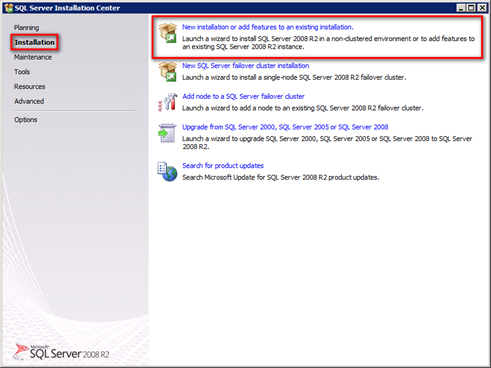
Select the Installation tab and click on New installation or add features to an existing installation.
The Setup Support Rules will be checked. No errors should occur. Click OK.
Sometimes you need to Install the Setup Support Files. Confirm all following queries.
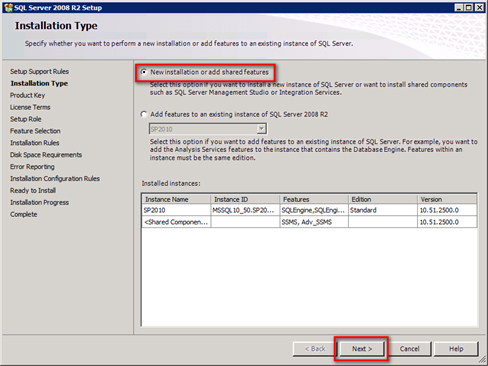
Select New installation or add shared features. Click Next.
Enter your License Key and accept the License Terms.
Select SQL Server PowerPivot for SharePoint and choose Existing Farm, if your SharePoint Farm is already configured. Click Next, Next, Next.

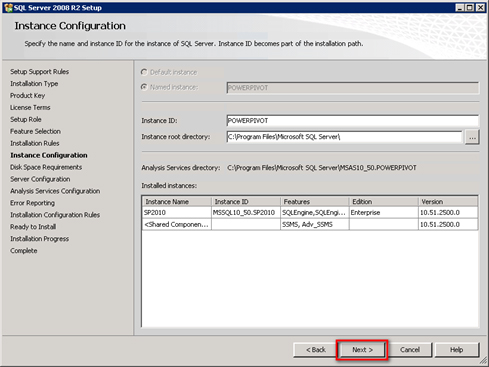
Create a new Instance named POWERPIVOT. Click Next, Next.
Enter the credentials of a dedicated SQL service account.
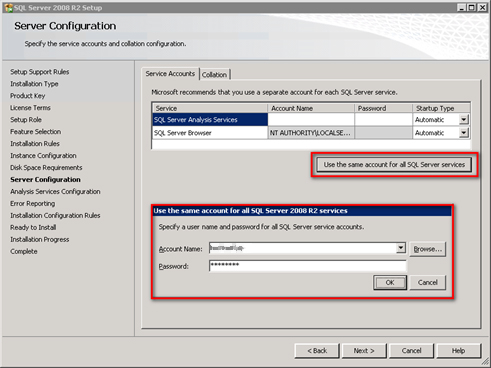
Go to the Collation Tab and change the collation to Latin1_General_CS_AS_KS_WS. Klick Next.
The Analysis Services Configuration window displays. Add the users you need. In this case SharePoint Setup and SharePoint Farm Accounts. Go to the Data Directories tab and change the directory locations.
Click Next, Next, Next, Install.